如何组装一台电脑?实用分步指南(2026)
面向新手的完整指南:配件选择、兼容性、走线、首次开机、BIOS 检查与系统安装。
1. Part Selection
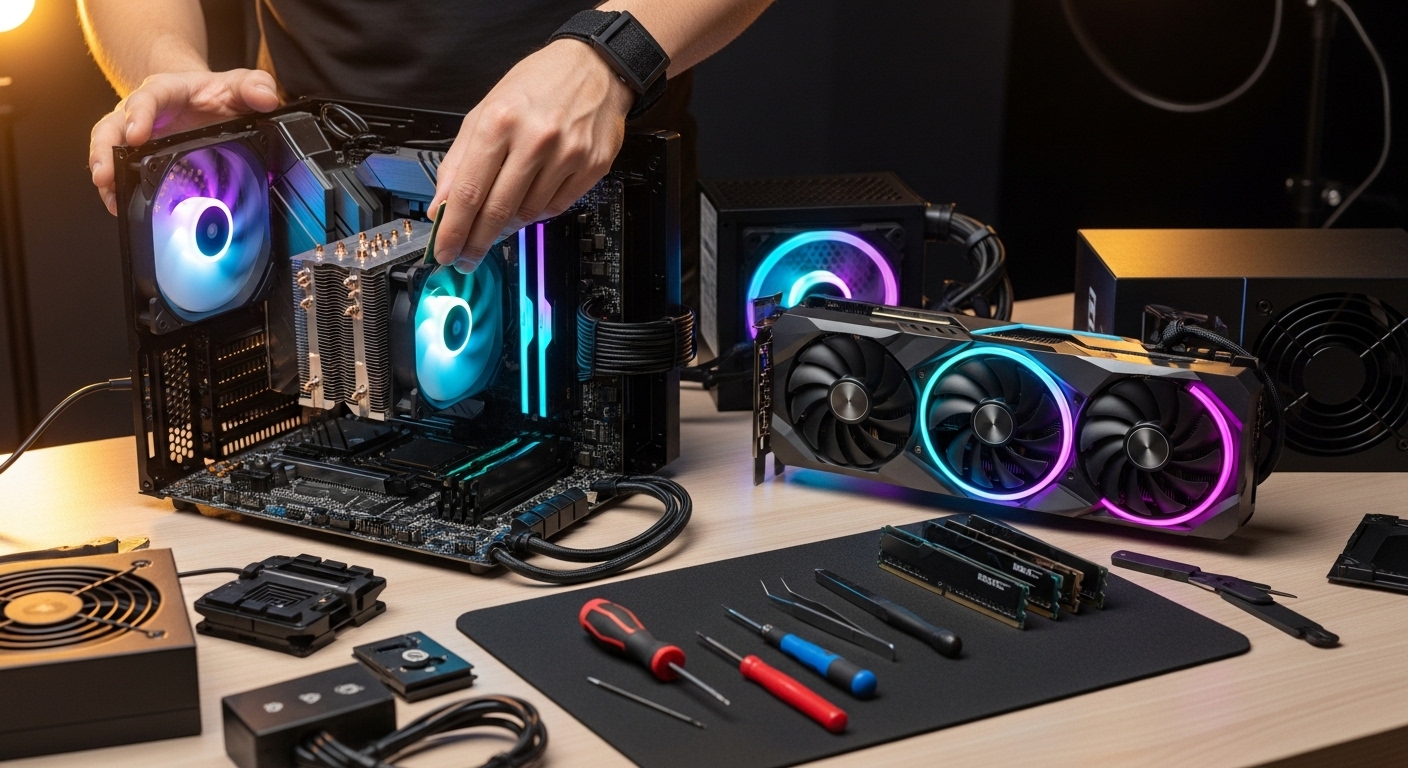
- Select the CPU, GPU, RAM, and storage according to your target use case.
- Choose a motherboard with matching socket/chipset and memory generation (DDR4 or DDR5).
- Choose a case based on motherboard size and GPU length (ATX / mATX / Mini-ITX).
- Pick a CPU cooler compatible with your socket and case clearance.
- Calculate PSU wattage with safe headroom and select a reliable power supply.
2. Required Tools Before Assembly
- Phillips screwdriver (magnetic tip recommended)
- Thermal paste (if not pre-applied)
- Cable ties / Velcro straps
- Clean and wide work surface
- Small container for screws and standoffs
- Optional anti-static wrist strap
3. Important Safety Notes
- Touch a grounded metal surface before handling components.
- Do not assemble on carpet.
- Use an anti-static strap when possible.
- Never screw a motherboard directly to the case without standoffs.
4. Pre-Assembly on the Motherboard
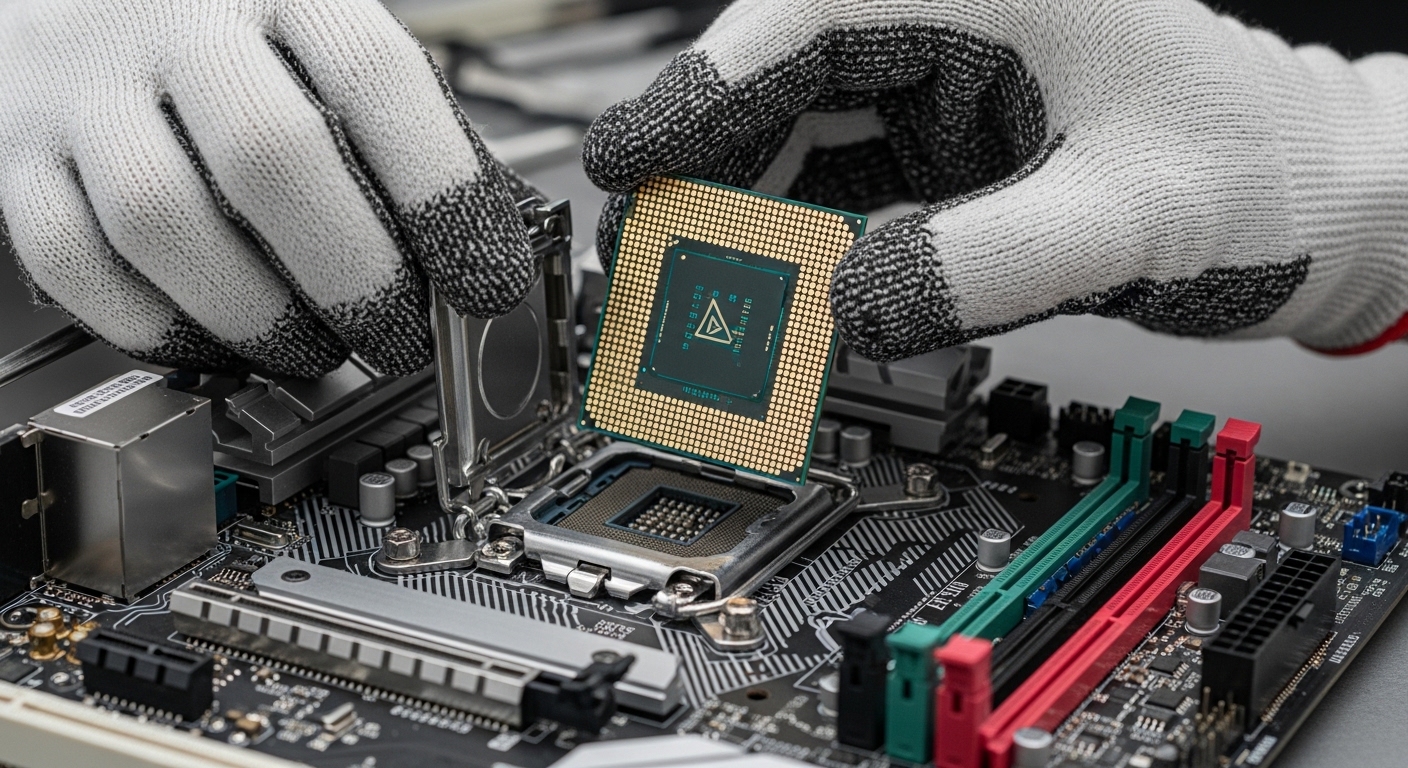
- CPU: Align the triangle markers and lower gently without force.
- Thermal paste: Apply a rice-grain-sized drop in the center.
- Cooler: Install with even pressure, then connect fan cable to CPU_FAN.
- RAM: Insert firmly in the correct orientation (A2/B2 first for two sticks).
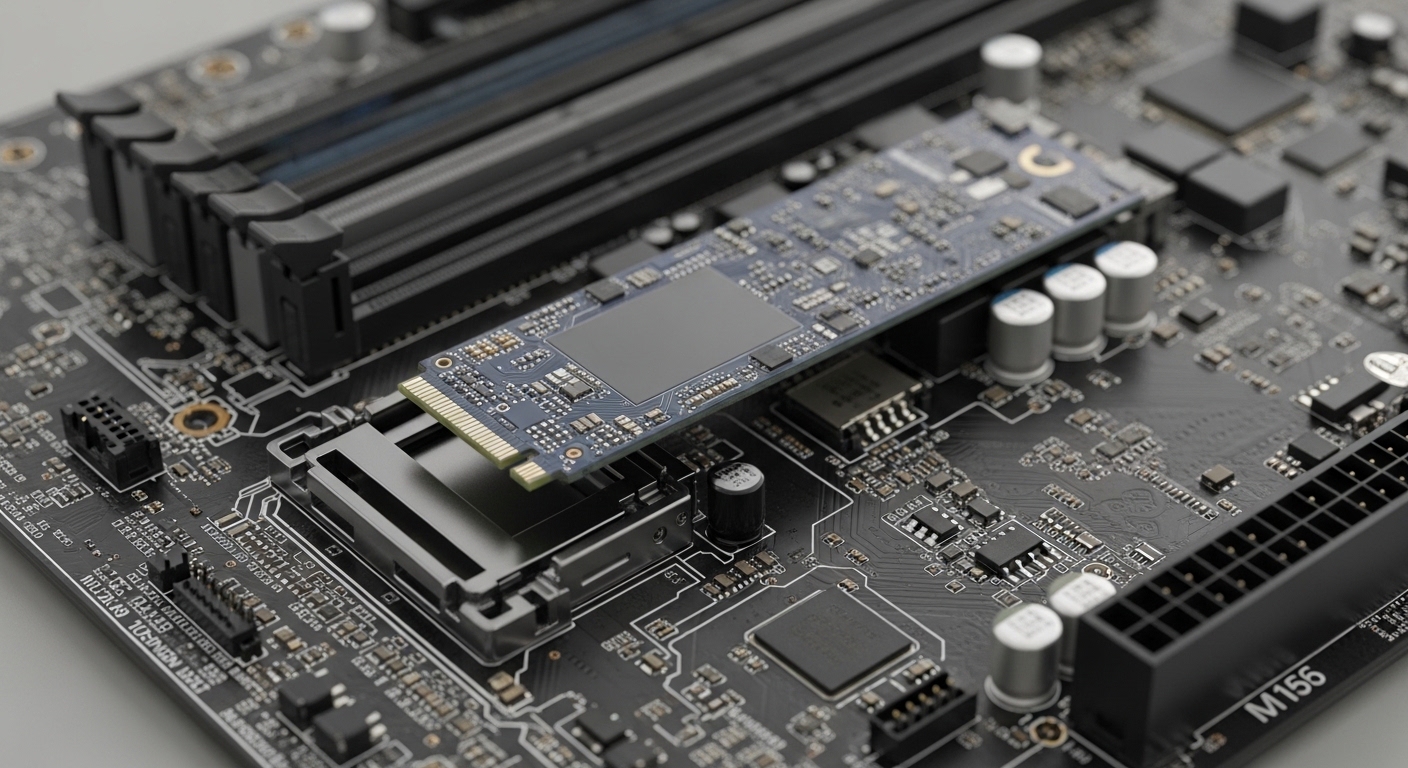
- M.2 SSD: Slide into M.2 socket and secure with the mounting screw.
5. Storage Installation
- For M.2 SSD: Install into motherboard M.2 socket and secure with screw.
- For SATA SSD/HDD: Mount into case drive tray/cage.
- For SATA drives, connect SATA data cable to motherboard and SATA power cable from PSU to the drive.
6. Mounting Motherboard Into Case
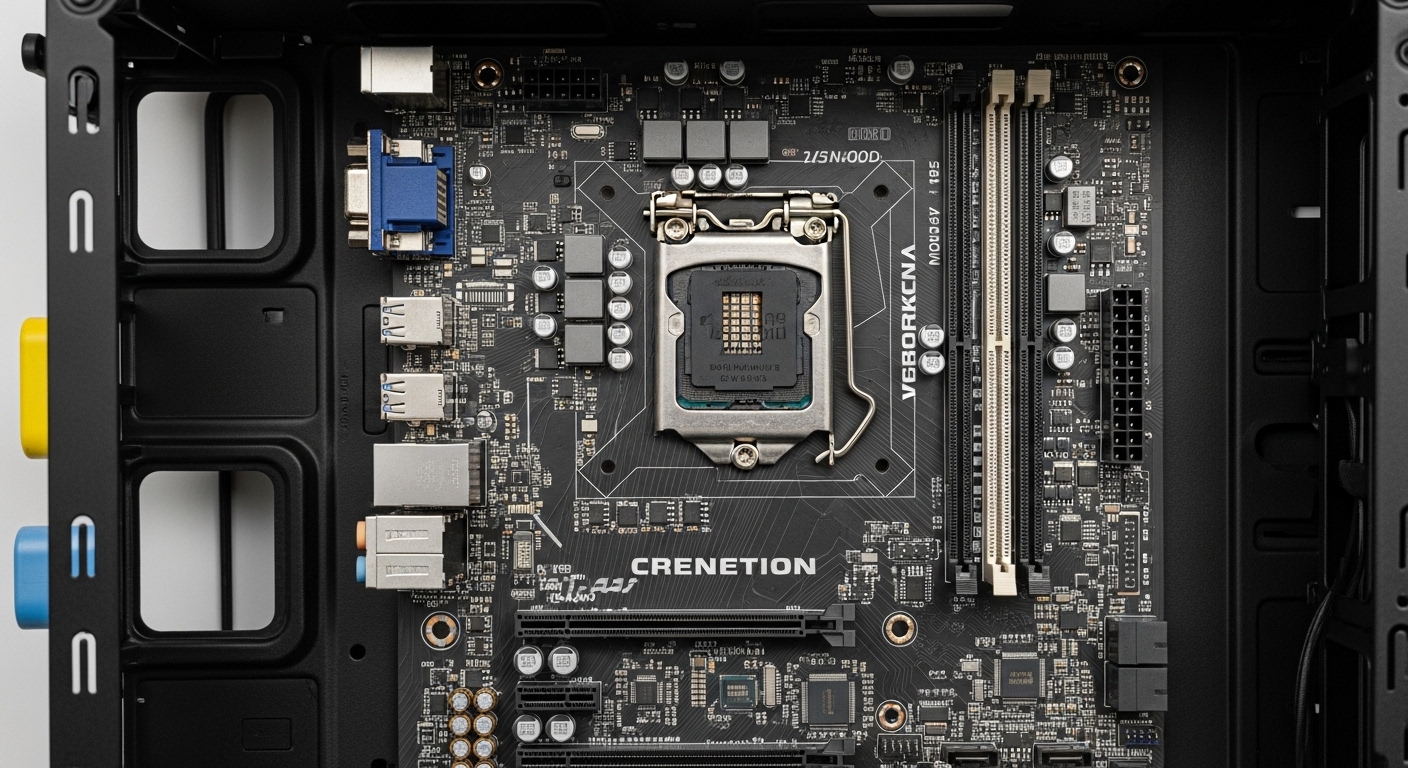
- Install rear I/O shield (if separate).
- Place standoffs in the correct positions for your motherboard size.
- Lower motherboard carefully and secure with screws (do not overtighten).
7. PSU and Power Cables
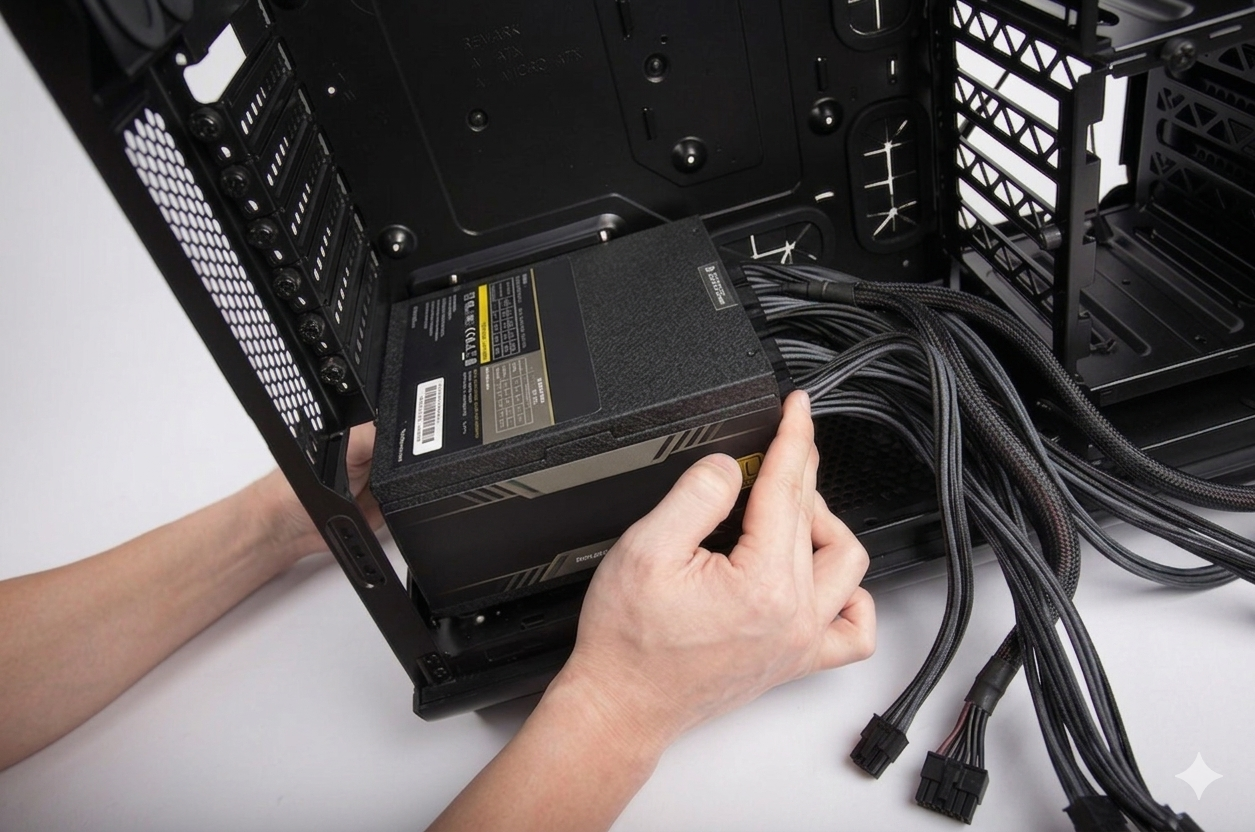
- Secure PSU in the case with correct fan orientation.
- All power leads in this step are PSU cables.
- 24-pin ATX cable -> motherboard main power.
- 8-pin (4+4) EPS cable -> CPU power input.
- PCIe (6+2) cables -> graphics card power.
- SATA power cables -> SATA drives and accessories.
8. Front Panel and Extra Connections
- Connect Power SW, Reset SW, Power LED (+/-), HDD LED (+/-) to F_PANEL header.
- Connect USB 2.0 / USB 3.0 front panel headers.
- Connect HD AUDIO header.
- Connect fans to CPU_FAN / SYS_FAN headers.
- Connect RGB/ARGB headers if your setup includes lighting.
9. GPU Installation
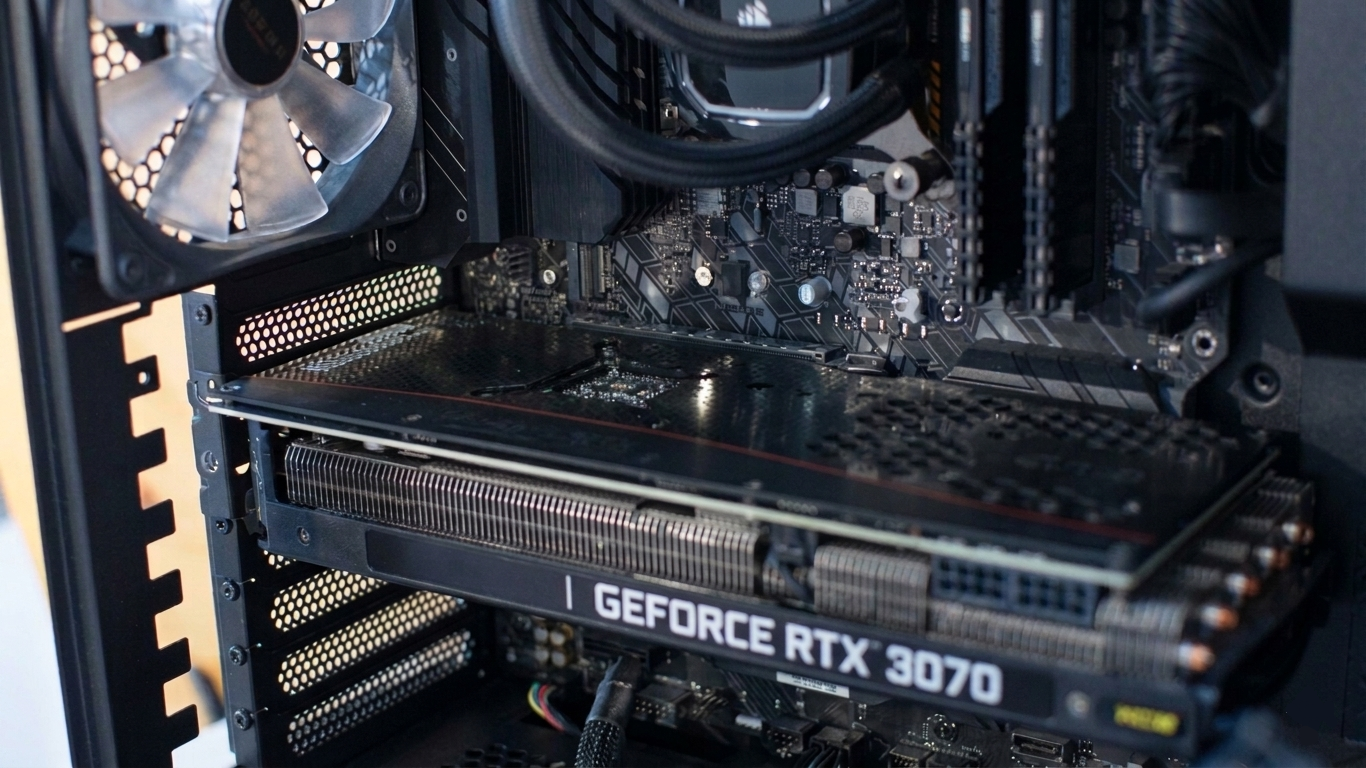
- Remove required PCIe slot covers from case.
- Insert GPU into primary PCIe x16 slot.
- Secure card with case screws.
- Attach PCIe power cable(s).
10. First Boot and Quick Checks
- Recheck all cable connections.
- Connect monitor to GPU output (not motherboard, if GPU installed).
- Turn on PSU switch and power on system.
- Confirm fans are spinning and display signal appears.
- If no display, reseat RAM and verify power cables again.
11. BIOS and Operating System Setup
- Press DEL/F2 during startup to enter BIOS.
- Verify CPU, RAM, and storage are detected.
- Set boot priority and install Windows/Linux from USB media.
Frequently Asked Questions
1. Are CPU and motherboard compatible?
The CPU socket type (for example AM5 or LGA1700) must match the motherboard socket.
2. Should I pick DDR4 or DDR5 RAM?
You must pick RAM type based on motherboard support. Newer generation usually means better platform longevity.
3. Does every GPU fit every motherboard?
Usually yes if there is a PCIe slot, but case clearance is often the real limitation.
4. Does every motherboard support M.2 SSD?
No. The motherboard must include at least one M.2 slot.
5. How much PSU wattage do I need?
Typical ranges: Mid-range 600-850W, high-end 850-1000W depending on CPU/GPU pair.
6. Can PSU cables be mixed up?
Yes. CPU EPS and PCIe cables are often confused. Wrong cabling can stop the system from booting.
7. How much thermal paste should I apply?
A rice-grain-sized amount is typically enough.
8. Which RAM slots should I use first?
For 2 sticks, A2 and B2 are usually recommended. With 4 sticks, populate all matching channels.
9. Can I screw motherboard directly to case?
No. You must use standoffs between case tray and motherboard.
10. What happens if I install CPU backwards?
Without force it will not seat. If forced, you may damage pins or socket.
11. PC powers on but no display. Why?
Most common causes: RAM not seated, missing GPU power cable, or monitor plugged into wrong output.
12. Should monitor connect to motherboard or GPU?
If dedicated GPU is installed, connect monitor to GPU outputs.
13. PC does not power on. What should I check first?
Check 24-pin ATX, CPU EPS power, and Power SW front panel connection.
14. Where does Power SW go?
To the F_PANEL header on the motherboard.
15. What if HDD LED polarity is reversed?
The LED may not light, but it usually does not damage hardware.
16. Where do case fans connect?
To CPU_FAN and SYS_FAN headers on the motherboard.
17. What if I skip CPU cooler installation?
CPU can overheat quickly and trigger shutdown for protection.
18. Can static electricity damage parts?
Yes. Ground yourself before touching components.
19. Do I need to enter BIOS after first boot?
Yes, to verify detection and basic settings.
20. Can PC run without operating system?
It can power on and enter BIOS, but you cannot use it normally without OS installation.
21. Can a first-time builder do this alone?
Yes. With a clear guide and careful checks, first builds are manageable.
22. Will parts break if I install them wrong?
Most parts have keyed orientation, but forcing installation can still cause damage.